
the Game
HoopSim, full screen
Open HoopSim on a computer and it now fills the window: your team on a wide sheet, Messenger beside it, every page a click away. Here is the tour, with screens and the five things worth knowing.
Until today HoopSim was a phone game. If you opened it on a computer, it sent you back to your phone. That changes now. Sign in at hoopsim.app on a laptop or a desktop and the game fills the window.
It is the same league, the same team, the same game. Nothing about the sim changed, and nothing you set on your phone is lost. What changed is the room you have to work in.
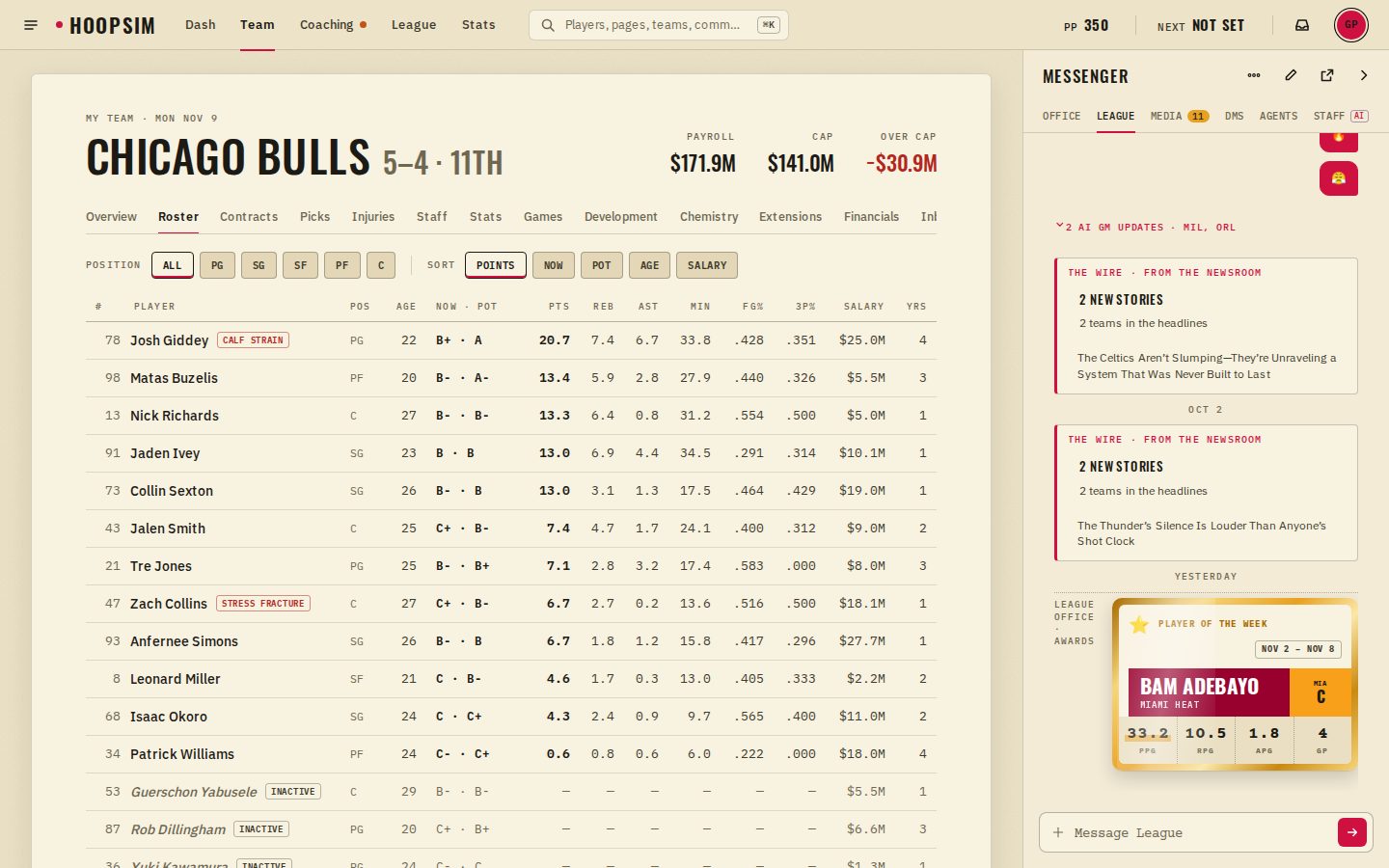
What you are looking at
Three parts. A line across the top with the main pages. A wide sheet in the middle with whatever you opened. And Messenger down the right side, open the whole time, so the league chat and your DMs are there while you work on the roster.
- 1The top lineDash, Team, Coaching, League and Stats run across the top. One click takes you to each.
- 2Every pageThe menu button at the top left opens the Start menu, with every page in the game.
- 3FindClick the search box, or press Ctrl+K (Cmd+K on a Mac), and type a player, a team, a page or a command.
- 4MessengerLeague chat, Media, your DMs, agents and your staff sit in a column on the right. The arrow at its top folds it to a slim rail.
- 5PlayersClick any player for a panel with your scouts' read, the stats and what you can do next. The up and down arrows step through the list, and Esc closes it.
The Start menu and Find
Two ways to get anywhere. The Start menu lists every page in the game, grouped the way they are on your phone. Find is faster once you know what you want: a player, a team, a page, or a command like proposing a trade.
 Start menu
 Find
FindMessenger stays with you
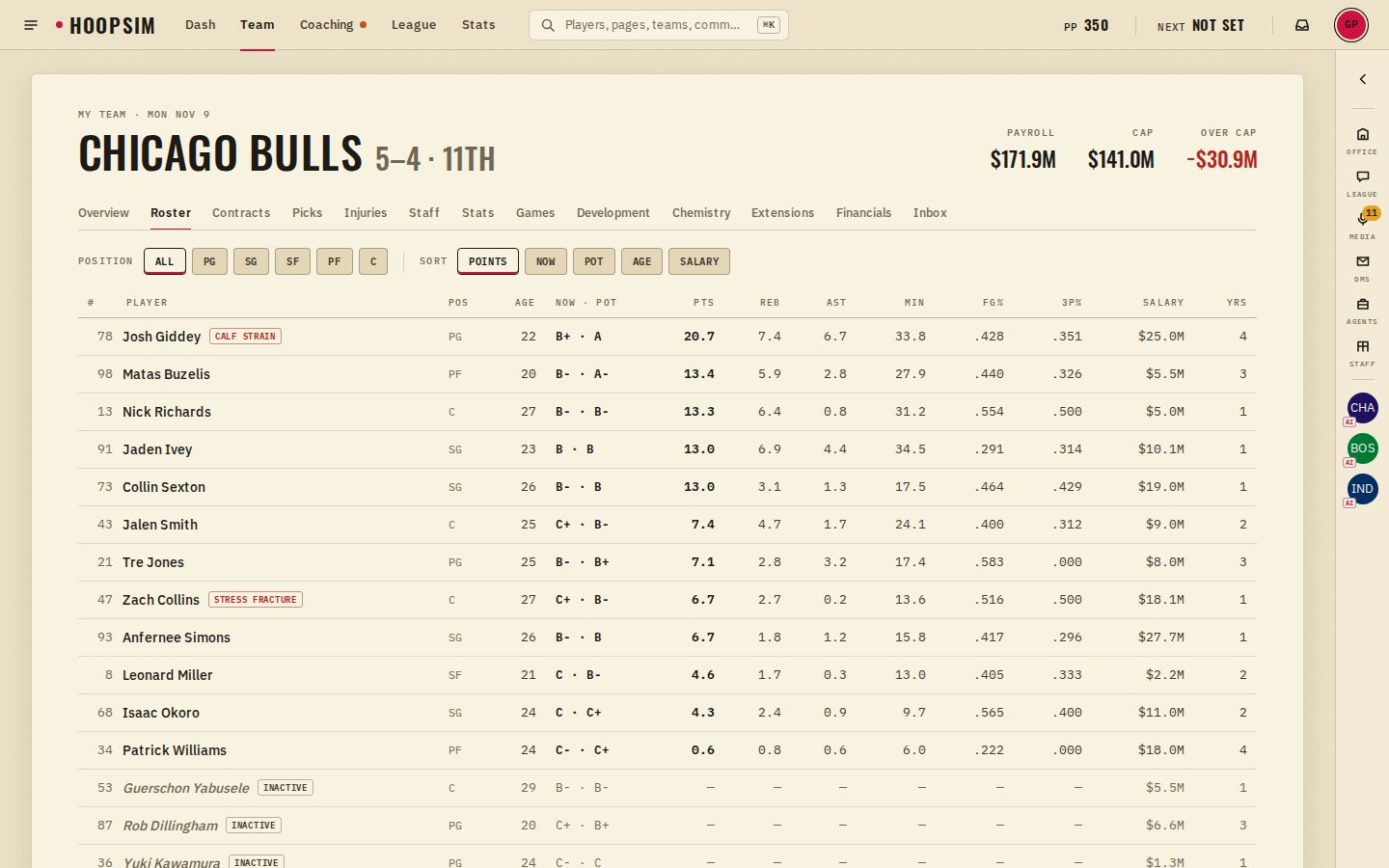
On a phone, Messenger is a place you go. Here it is a column that stays put, with the same tabs: Office, League, Media, DMs, Agents and your staff. Click any player, anywhere, and that player's panel slides out beside it.
 Messenger
 A player
When you want the full width for a big table, fold Messenger away. It remembers how you left it.
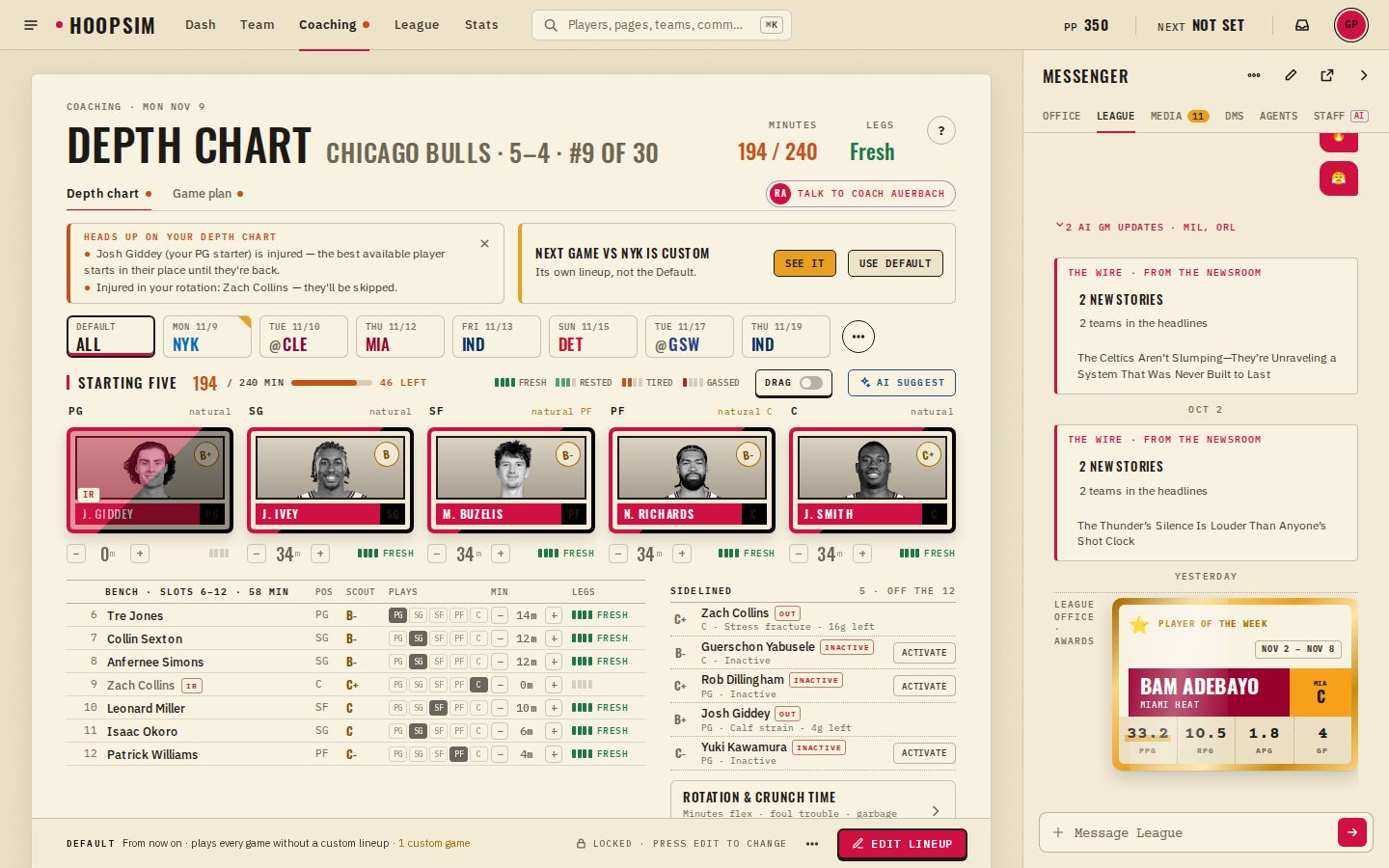
Coaching with a mouse
The depth chart is where a bigger screen helps most. Switch Drag on and you can pull a player from the bench into the starting five. Edit unlocks the lineup, and Done saves it.
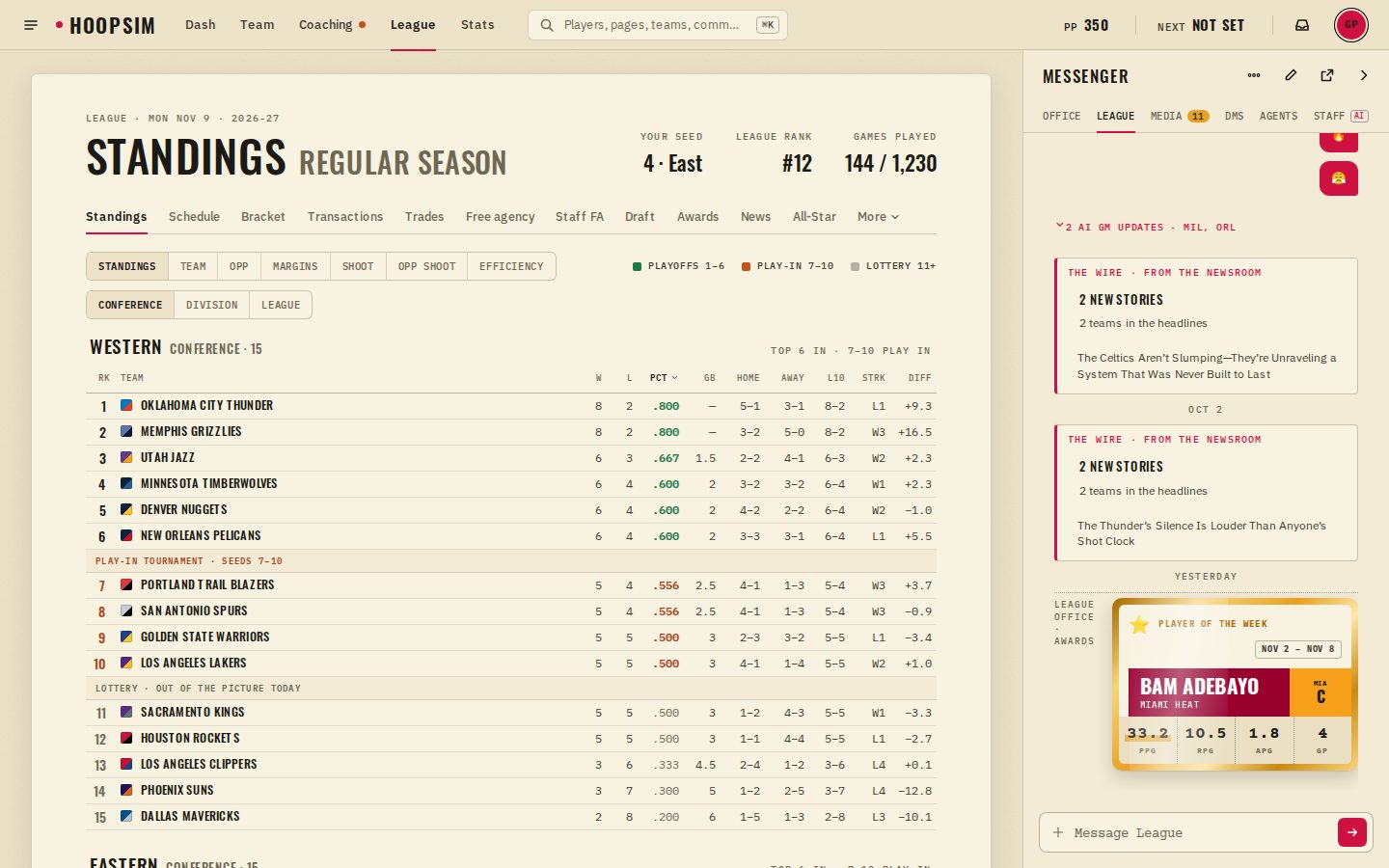
The league on one page
Standings, the schedule, the bracket, transactions and the rest of the League pages are tabs across one sheet.
Phone or computer
Sim nights still open the live room on their own, and it takes the whole window. On a big monitor the whole game scales up instead of sitting small in the middle. And if you ever want the phone pages on a computer, add ?view=phone to the address.
“Same league, same team, same game. More room to work.”
Use it for a night and tell me where it gets in your way.
— Dr. Possession